
Announcement
Our new documentation site is alive!
You can view our latest documents here.
Sensei Configuration
General
Deployment Mode Configuration
Figure 1. Deployment Mode selection

Sensei can be deployed in three different deployment modes:
- Passive Mode (Reporting only, no blocking)
- Routed Mode (L3 Mode, Reporting and Blocking available)
-
-
With native netmap driver
-
With emulated netmap driver
-
3. Bridge Mode (L2 Mode, Reporting and Blocking available)
Default mode is the second option: Routed (L3 Mode) and with native netmap driver. If you don’t know what you’re doing; or do not understand the stuff here, we suggest you leave it on the default option.
See below for detailed explanations for each of the deployment modes.
1. Passive Mode (Reporting only mode)
Passive mode is like Suricata’s IDS mode. Sensei grabs a copy of packets from the configured interfaces and provides you with a wealth of information through its reporting. In this mode, it’s not possible to do blocking.
If you’re having trouble with the netmap subsystem and still want to make use of Sensei’s advanced reporting capabilities, this is the best option.
2. Routed Mode (L3 Mode, Reporting + Blocking)
Routed Mode is the option where you deploy Sensei on top of the firewall and you still make use of the firewall’s other services like L3/L4 filtering, routing, VPN and other plug-ins that are available.
In this mode, you can both do reporting and enjoy all of the filtering functionalities of the software.
This mode utilizes netmap(4), the underlying packet processing subsystem of the FreeBSD operating system. You have two options:
a. With native netmap driver
Being the default deployment option, this option allows you to be able to make use of native netmap performance with regard to Ethernet drivers.
Netmap can be picky when it comes to driver compatibility. If you suspect that your ethernet driver does not play well with netmap, then your best bet is using L3 mode with the Emulated/Generic netmap driver. See below for details.
b. With Emulated/Generic netmap driver
As discussed above, if you suspect your Ethernet driver does not play well with netmap, you can use this option to be able to continue using Sensei with all of the functionality.
Be noted that the emulated driver is not as performant as the Native netmap driver.
4. Bridge Mode (L2 Bridge Mode, Reporting + Blocking)
This experimental deployment mode allows you to be able to deploy Sensei like an Inline Web Secure Gateway.
In this mode, it’s not possible to make use of other existing OPNsense functionality like firewalling, VPN and other plug-ins; since Sensei will bypass the Operating System and your device will act as a transparent filtering appliance.
This mode supports Hardware Assisted Bypass technologies. Currently only Silicom Bypass Adapters are supported.
With Hardware Assistant Bypass adapters, your device can act like a simple cable when there’s a software/hardware problem, when Sensei is shut down or even when the machine is powered off.
Interface Selection
A network interface is the point of interconnection between a computer and a private or public network. A network interface is generally a network interface card (NIC), but does not have to have a physical form.
On the sensei configuration page, there are a number of interfaces available depending on the model of the Sensei installed device.
Figure 2. Interface selection

Sensei Users have to configure these interfaces according to their monitoring requirements
! Caution: If you have multiple VLANs associated with a single physical interface, you should only select the physical parent interface. Sensei will be able to analyze all of the VLAN traffic when monitoring the parent interface
When you monitor the parent interface, Sensei will monitor all VLANs associated with that interface.
Note: In the Free Edition, you cannot exclude VLANs from being monitored if you have multiple VLANs assigned to a single, parent interface.
If the desired interface does not exist in the left pane, click “Refresh Interfaces List”
To protect the interface of the device select the required one from the left pane and click the right arrow sign.
Note: If you cannot see the interface that you look for; it because it is not supported by Netmap Driver.> These interface types ( USB/ Some Wireless NIC, LAGG Interface,) will start to be displayed on version Sensei 1.9 with a notification that you might encounter problems.
Exempting VLANs & Networks

Figure 3. Exempted VLANs & Networks
To exempt some VLANs from protection by Sensei, you need to entern VLAN ids to this pane. By excluding VLAN, sensei will bypass the traffic of that VLAN.
Note: To get help about Exempted VLANs & Networks use full help toggle.
Exempted VLANs and Network addresses are bypassed from any Sensei processing. The difference from Policy-based whitelisting is that these do not enter any packet processing and directly forwarded at the interface level. For that reason, for these addresses, you’ll also not see any activity reported in the reports.
Likewise, you can also exclude IP addresses or networks by entering them in CIDR format (IPv4). You can also set a name (optional). You may add or remove IP addresses from that list and you may edit the IP address or definition…
For ease of finding IP addresses on the list, you can sort by using the (aZ-Za) button with a red up/down arrow icon.
Figure 4. IP /Network Address Details

Deployment Model Preview
Deployment section shows what kind of database Sensei is using and which Sensei subscription is available. These parameters are set during the installation and the deployment size is determined by your hardware and Sensei subscription tier ( for more information please visit https://www.sunnyvalley.io/plans)
Figure 5. Deployment

Creating Rest API Security Tokens
Rest API token is a unique identifier of an application requesting access to your Sensei service
In this pane, you can create a new token or you can disable or delete the existing token. Currently, tokens are used for Active Directory integration. Please check the Active Directory installation video for further details (https://www.youtube.com/watch?v=zgCEI1i68kY)
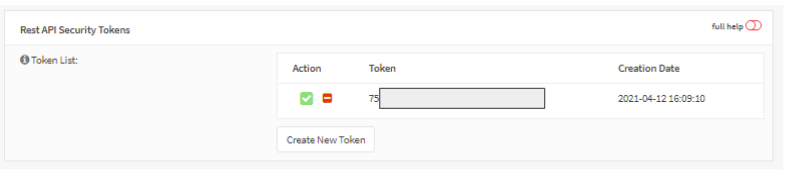
Figure 6. Rest API Security Tokens
Landing Page Configuration
The landing page is the page users will be prompted when traffic is blocked by Sensei
In Landing Page Pane, you can
- upload a new HTML template for a new design landing page.
- view or download current template
Figure 7. Landing Page

To upload a new template
- Click Browse
- Select template file and click Open.
- You can view existing templates or newly created templates by clicking the “View” button.
- Click the “Save Changes” button to save the template.
For later use or archive purpose, you can “Download” the template.